Sunday, 15 June 2014

Put the Maps for the Hotel Location

I need to put the Hotel Location as well, so the user can easily find the location of the hotel and the maps can help the user by navigate them to their hotel destination.

I was thinking of using third party application which is google maps. So I try to put the static image in my Hotel Information, once they click, it will automatically jump in to the Maps Page.

The first step is I go to the google maps and find the Hotel from the search engine


After I found the hotel location, then I copy all the link above and then paste it in to my coding


Once I paste it, when I click to the Maps Static Image, it will automatically open the new tab and go to the Google Maps. 

Saturday, 14 June 2014

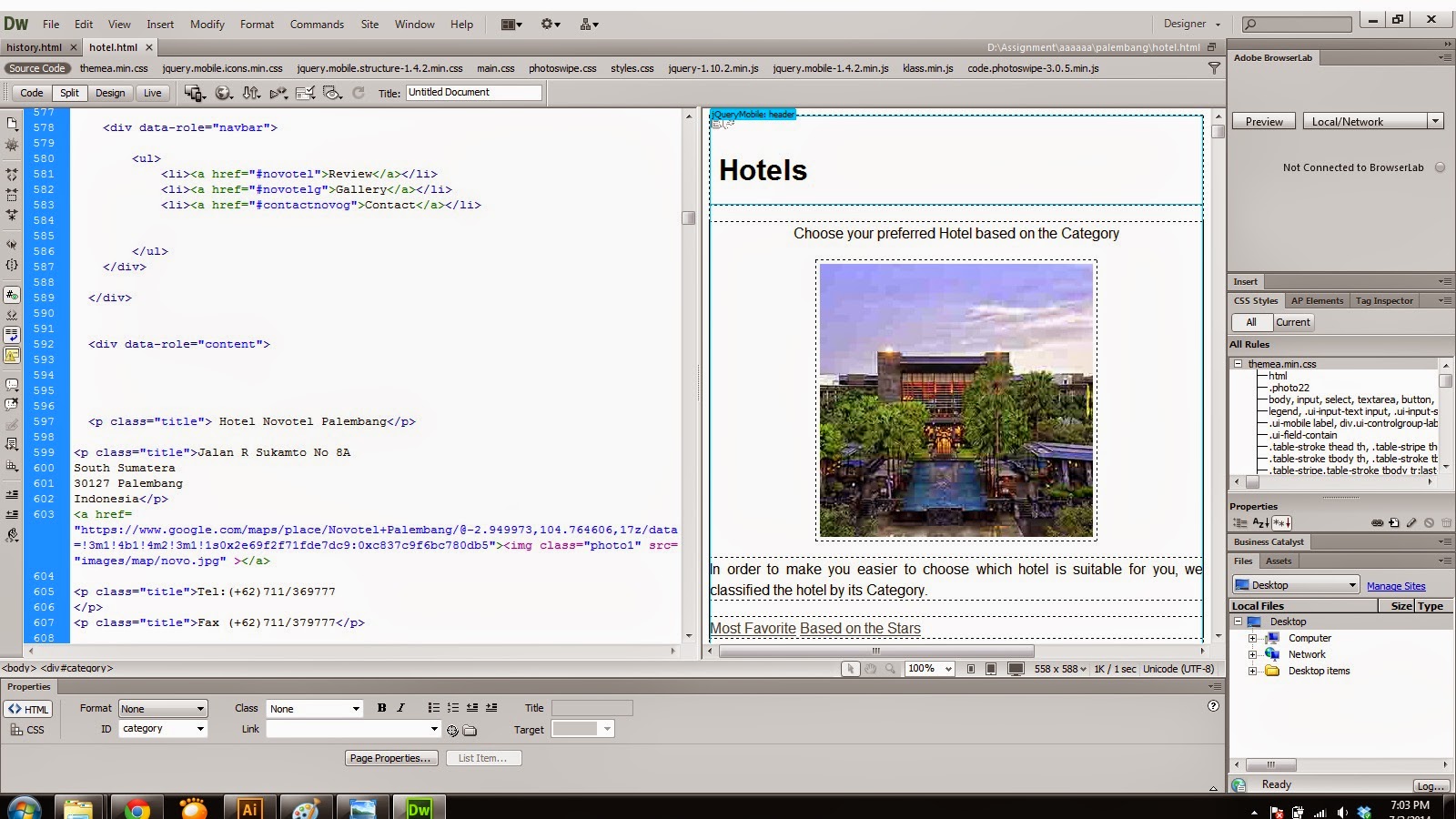
Designing the Hotel Page and create it in Adobe Dreamweaver

Since I already pick the colour which are red and white, it's more easier to me to think about the wireframe for Hotel Part.

On the Hotel part, there will be 2 button to represent the hotel, include Most Favorite Hotel and Based on the Star.


Since there are many information inside that,  it takes me more time to finish it. 


Thursday, 5 June 2014

About Palembang Page in Dreamweaver

After I finished the homepage, then I move to the next page which is About Palembang. 


Luckily, all the coding looks fine and work properly. 

Saturday, 31 May 2014

Fix the problem for index page

After I look in through the coding, all the coding looks fine, then I open my Adobe Illustrator File and I found that the problem is from the resolution of the symbol is too low . So, I redo the symbol, change the resolution and enlarge the size of the symbol.


Then, I try to reload it on Dreamweaver, and finally it looks fine .


Thursday, 22 May 2014

Start to bulid the index page i Adobe DreamWeaver CS6 and got error

I haven't done all the design yet, so I try to create the homepage for this apps.

 I create the new file in HTML5 , and then I insert the jquery mobile Page to create the index page.

At the first step, I'm going to the http://themeroller.jquerymobile.com/ to pick the color that I've chosed before for my apps.

So this is the screenshot when I pick the colour from Jquery mobile themeroller


After I pick the colour, then I download the theme in  packages and combine it with my apps folder. After it, I call the jquery theme from the index by putting some coding, so all the theme can be used in all pages.


After I put all the coding , then I start to put the button and the content inside this index page.

For this page, I put Ampera Bridge as the Landmark of Palembang. by using  "img class and css code" , I can adjust the position and do the responsive page.


After I create the button and put the symbol as well, I got a problem , my symbol are pixelated and the hotel button is too small. So i need time to redo some coding and try it again.

Friday, 9 May 2014

Redo and finalized the Screen Design

After I do some research one more time, I found that the colour must be simple so, people can focus on the content inside the apps. So, rather than use many colour color, I only use 2 colours in my Mobile Apps which means red and white.

This is my design for the home page


I use red colour for header and the footer while the button I use white colour. The colour match and I continue my work to the other page. 


There is two option on the header and the footer colour. Still need to do the trial and error in Adobe DreamWeaver whether the colour match or not. 


Sunday, 4 May 2014

The other design

I have choose another colour, but the layout is still the same. Need to finalized it before mid break -.-